
1. Test and install safely
Create trusted boot media, check real hardware, protect Windows, and understand disk choices.
Safe Live-USB & Install Guide →Compare beginner distributions, understand specialist options, test Linux without replacing Windows, and find the tools and hardware that make switching easier.
Create trusted boot media, check real hardware, protect Windows, and understand disk choices.
Safe Live-USB & Install Guide →
Understand Steam, Proton, anti-cheat, drivers, launchers, controllers, and realistic limitations.
Linux Gaming Guide →
Map office, creative, cloud, and communication workflows before removing a dependable setup.
Windows App Alternatives →
A traditional desktop layout, sensible defaults, and an easy first experience for everyday browsing, documents, and media.
Official Mint download ↗
Extensive documentation, wide hardware recognition, long-term-support releases, and strong commercial and community backing.
Official Ubuntu download ↗
A polished GNOME desktop with newer Linux technologies. Great for curious users who are comfortable with a faster update pace.
Official Fedora download ↗| Distribution | Best for | Release style | Beginner fit |
|---|---|---|---|
| Linux Mint | Windows switchers and home desktops | Conservative, Ubuntu-based | Excellent |
| Ubuntu | General use, learning, development, and broad support | Regular and long-term-support options | Excellent |
| Fedora Workstation | Developers and users who want newer Linux features | Frequent, forward-looking releases | Good with curiosity |
| Red Hat Enterprise Linux | Business servers, certification, and enterprise environments | Long-life, subscription-backed platform | Learn after the basics |
| Kali Linux | Authorized penetration-testing labs and security training | Rolling specialist toolkit | Not a first daily desktop |
| Tool | What it does | Best use | Main limitation |
|---|---|---|---|
| Wine | Translates Windows application calls for Linux | Compatible desktop programs without a Windows installation | Compatibility varies by app and version |
| Steam Proton | Valve’s Wine-based compatibility layer for Windows games | Playing supported Windows games through Steam | Some anti-cheat, launchers, and new releases may not work |
| Virtual machine | Runs a complete guest operating system inside Linux | Office tools, testing, and software that needs real Windows | Needs a Windows license, RAM, storage, and CPU resources |
| Dual boot | Keeps Linux and Windows on separate partitions or drives | Maximum game and hardware compatibility when Linux is not enough | Partition risk and a reboot whenever you switch |
Check the software vendor first for a native Linux version or web app. For games, review the game’s Steam page and community reports on ProtonDB; reports are helpful but are not a guarantee for your exact hardware.
General-purpose desktop with long-term-support options.
ubuntu.com ↗Familiar desktop experience for new Linux users.
linuxmint.com ↗Modern desktop backed by the Fedora Project.
fedoraproject.org ↗
Enterprise platform; eligibility and subscription terms apply.
redhat.com ↗
Security-testing distribution for authorized environments.
kali.org ↗
Compatibility project for running supported Windows applications.
winehq.org ↗
Open-source compatibility tool used by Steam Play.
Official Proton project ↗
Cross-platform virtual-machine software.
virtualbox.org ↗
Use the distribution’s recommended writer; Rufus and Etcher are common choices.
Rufus ↗ Etcher ↗Prefer hardware that lists Linux support or has strong model-specific community documentation. “PC compatible” does not automatically mean every feature works in Linux.
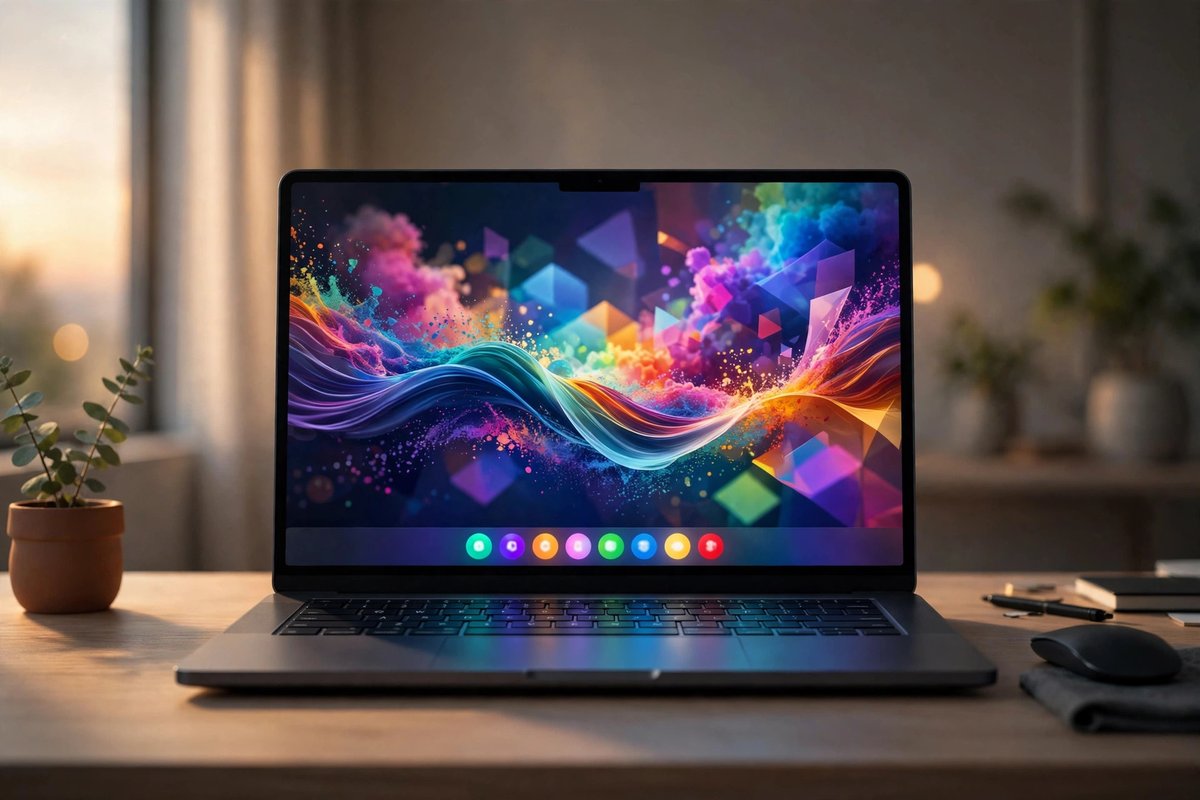
Look for supported Wi-Fi, suspend, audio, display scaling, and firmware updates. Business-class models often have better documentation.
Explore Linux-ready laptops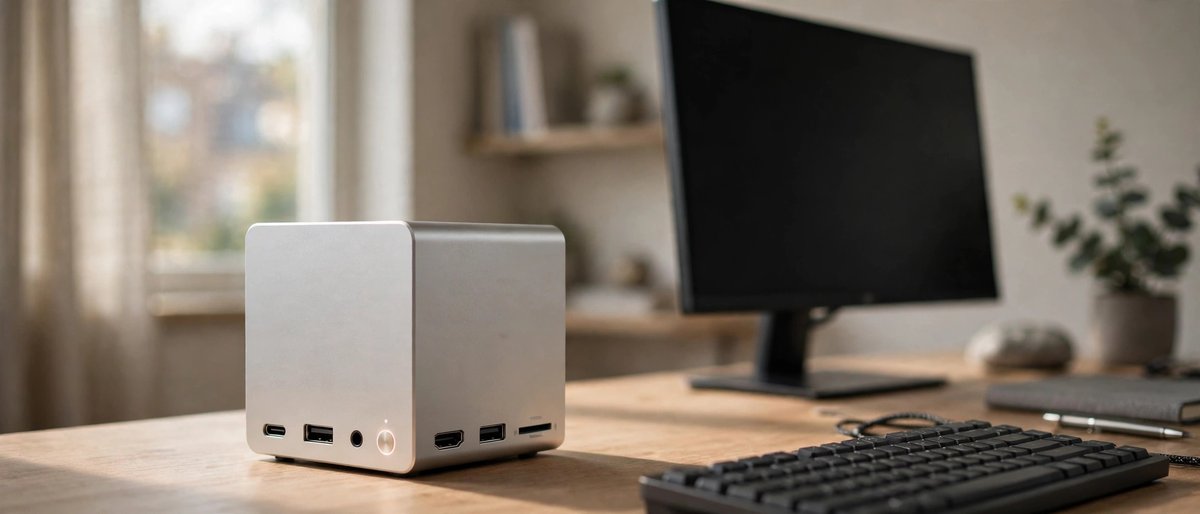
Useful for learning, home servers, media projects, and a separate test machine. Verify the network and graphics chip before buying.
Compare Linux mini PCs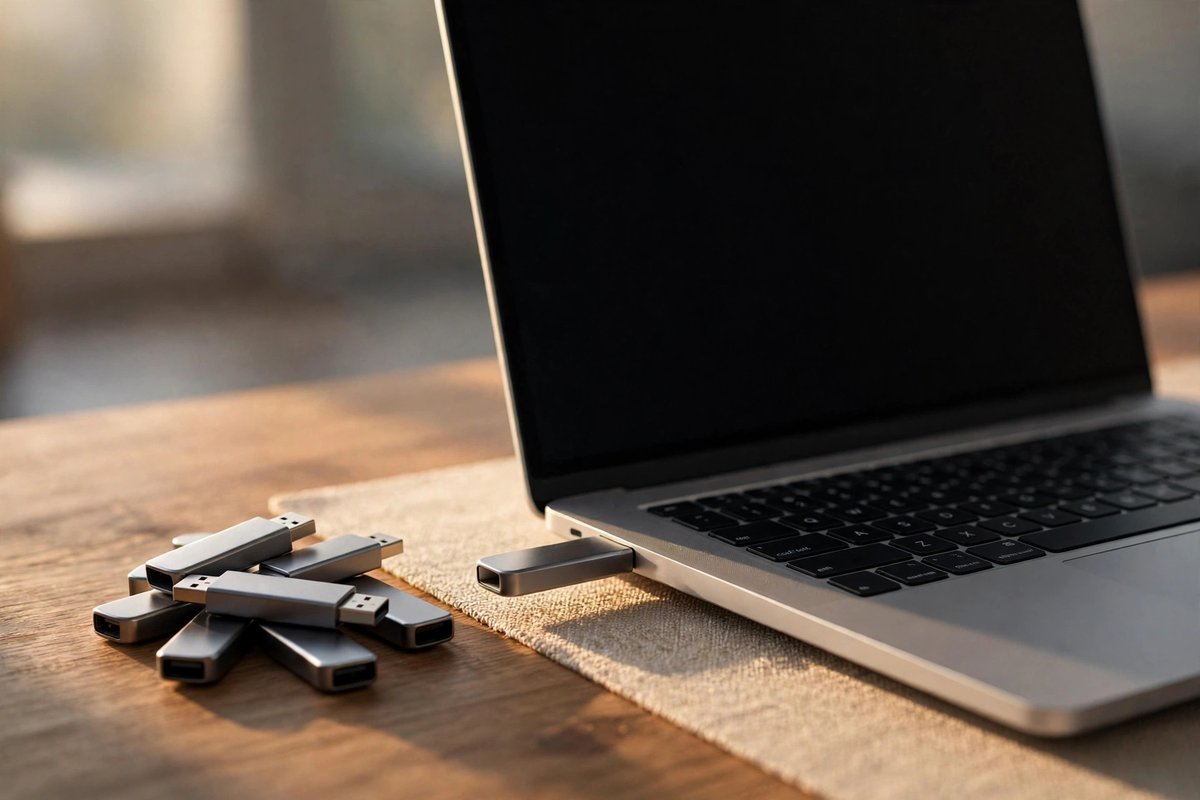
Keep a labeled installer USB, a separate recovery drive, and an external backup before changing partitions or operating systems.
Shop install and backup storageLinux Mint is often the most familiar choice for people moving from Windows. Ubuntu is another excellent starting point when broad documentation, vendor support, and long-term-support releases matter most.
Sometimes. Wine supports many desktop applications, Steam Proton supports many Windows games, and a virtual machine can run licensed Windows software that needs the full operating system. Always check each important app before switching.
Usually no. Kali is a specialized security-testing toolkit for authorized labs and trained users. Learn Linux fundamentals on Mint, Ubuntu, or Fedora first, then use Kali in an isolated virtual machine when you understand the tools and legal boundaries.
No. Start with a live USB or virtual machine. Dual booting is also possible, but it changes disk partitions, so make a tested backup and recovery media first.