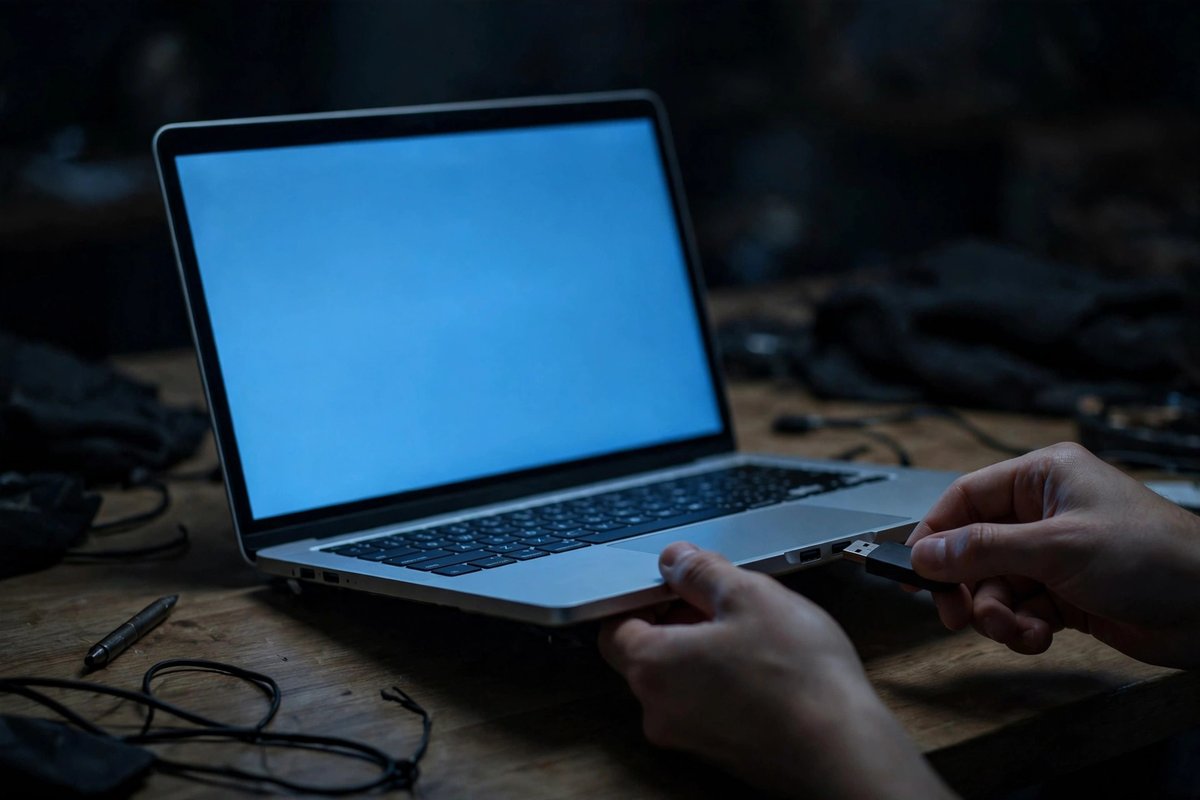
Live USB session
Boot Linux from removable media without installing it. This is the best way to test Wi-Fi, sound, displays, sleep, keyboard, and touchpad on the actual computer.
Test Linux on real hardware without treating your everyday computer like an experiment.
Boot Linux from removable media without installing it. This is the best way to test Wi-Fi, sound, displays, sleep, keyboard, and touchpad on the actual computer.
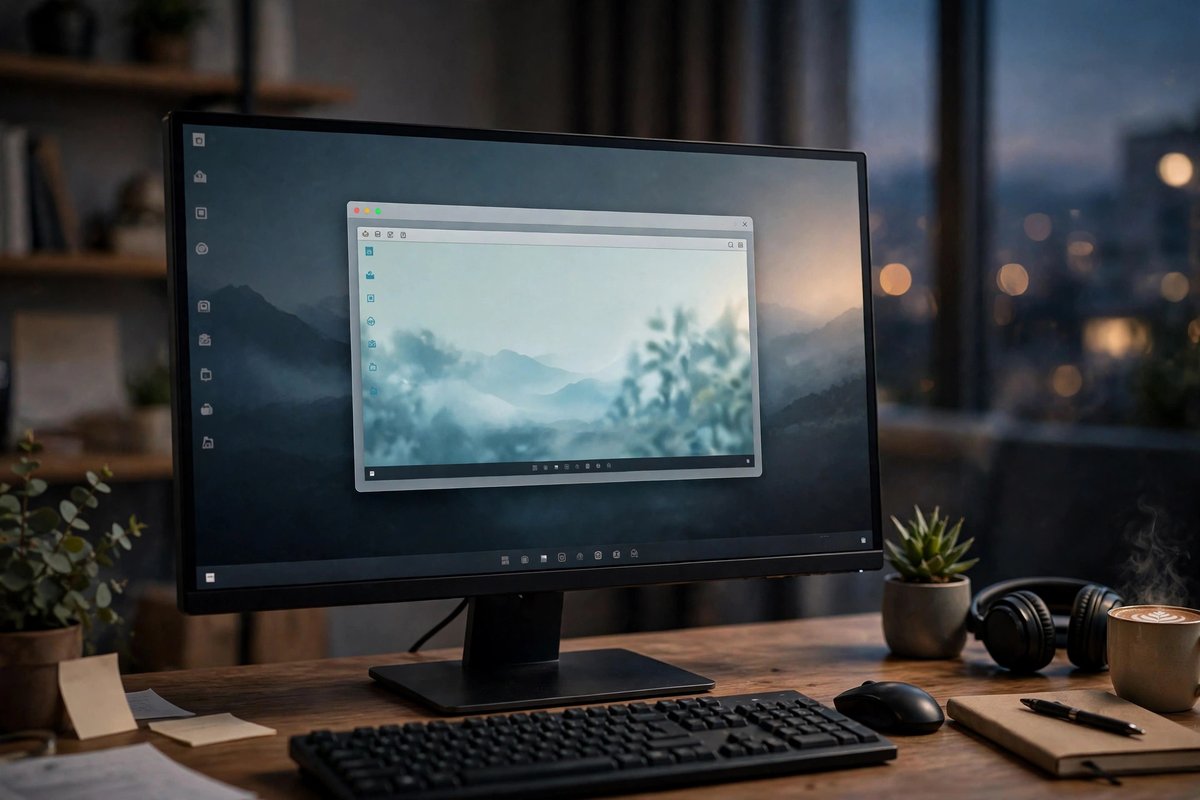
Run Linux in a window inside Windows or macOS. It is excellent for exploring the desktop, but it cannot prove that every physical device will work after installation.
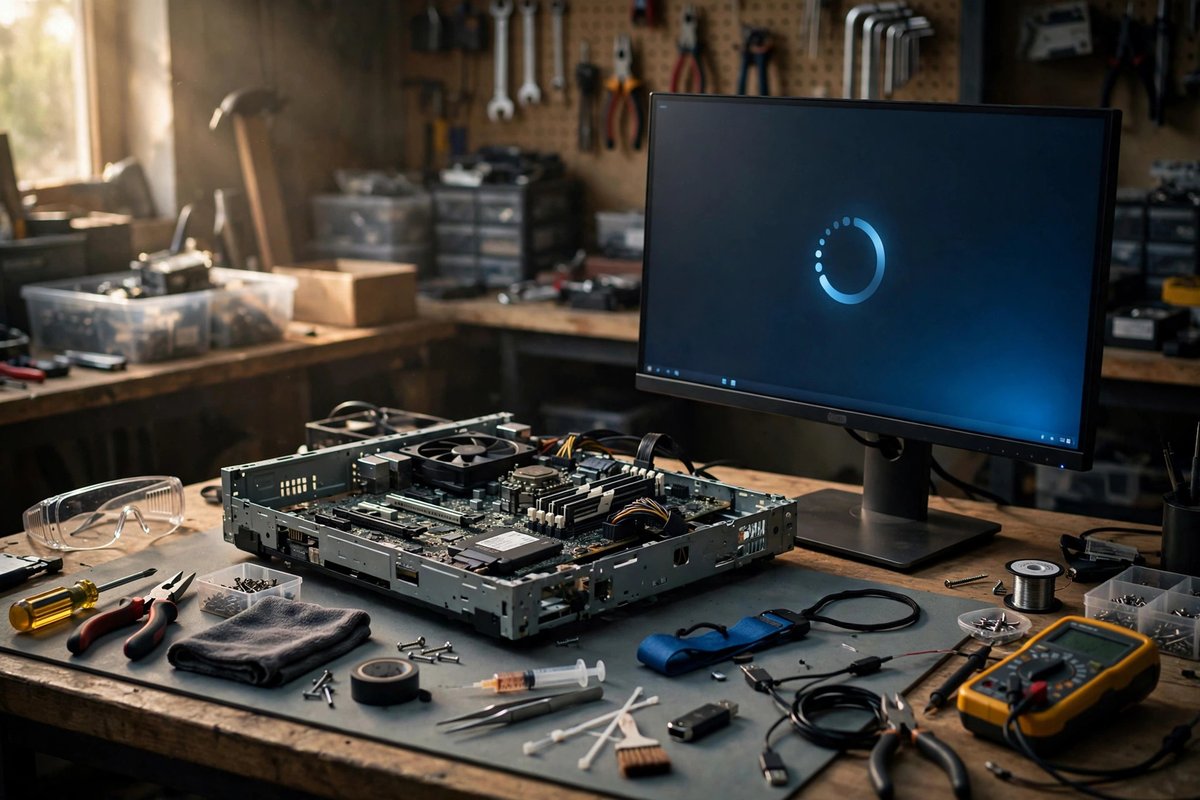
Keep experimentation away from the computer you depend on. A spare machine or separate internal drive reduces partitioning complexity.
| Test | What to do | Do not ignore |
|---|---|---|
| Networking | Join Wi-Fi, test Ethernet, Bluetooth, and VPN requirements | Missing adapter, unstable connection, or weak resume |
| Graphics | Try native resolution, scaling, external displays, and video playback | Flicker, black screens, tearing, or missing brightness control |
| Audio/video | Test speakers, headphones, microphone, webcam, and conferencing | Wrong input/output, low volume, or absent camera |
| Power | Test sleep, wake, shutdown, battery reading, and lid behavior | Failure to wake, excessive heat, or rapid battery drain |
| Input/accessories | Test keyboard keys, touchpad gestures, mouse, printer, dock, and card reader | Features you use daily that need manual workarounds |
Official desktop image and release information.
ubuntu.com ↗
Official editions, mirrors, and verification guidance.
linuxmint.com ↗
Official Workstation download and media writer.
fedoraproject.org ↗
Popular Windows tool for writing bootable USB media.
rufus.ie ↗Cross-platform image writer with a simple workflow.
balena.io ↗
Multi-image boot tool for experienced users; review its documentation first.
ventoy.net ↗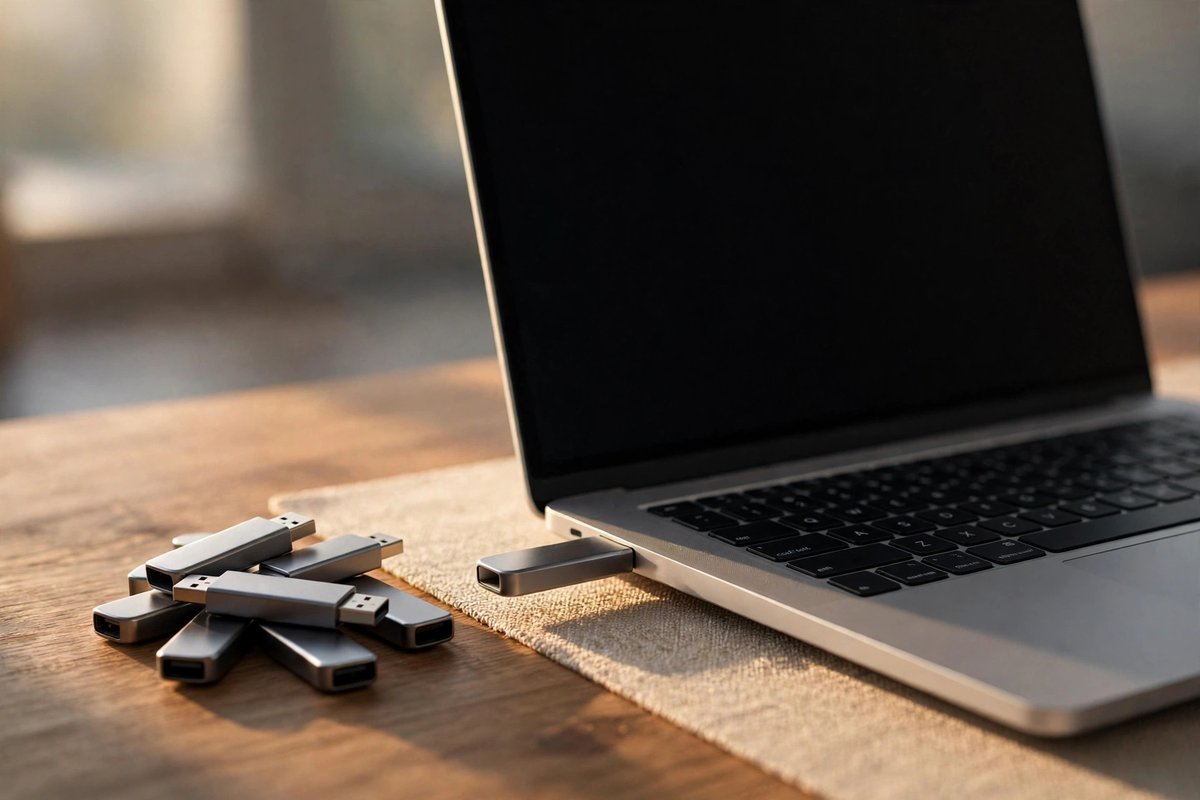
Keep the Linux installer separate from Windows recovery media and label both clearly.
Compare USB drives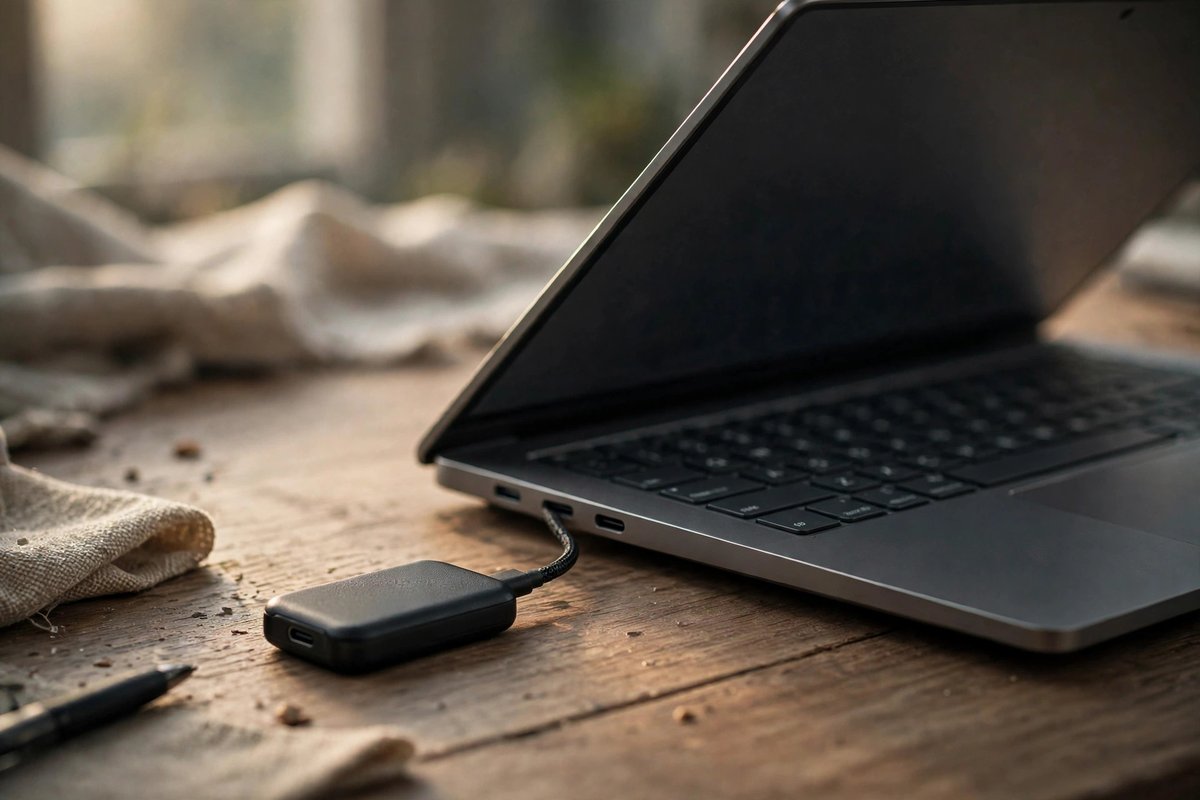
Store a tested copy of personal files before resizing, repartitioning, or replacing an operating system.
Compare portable SSDs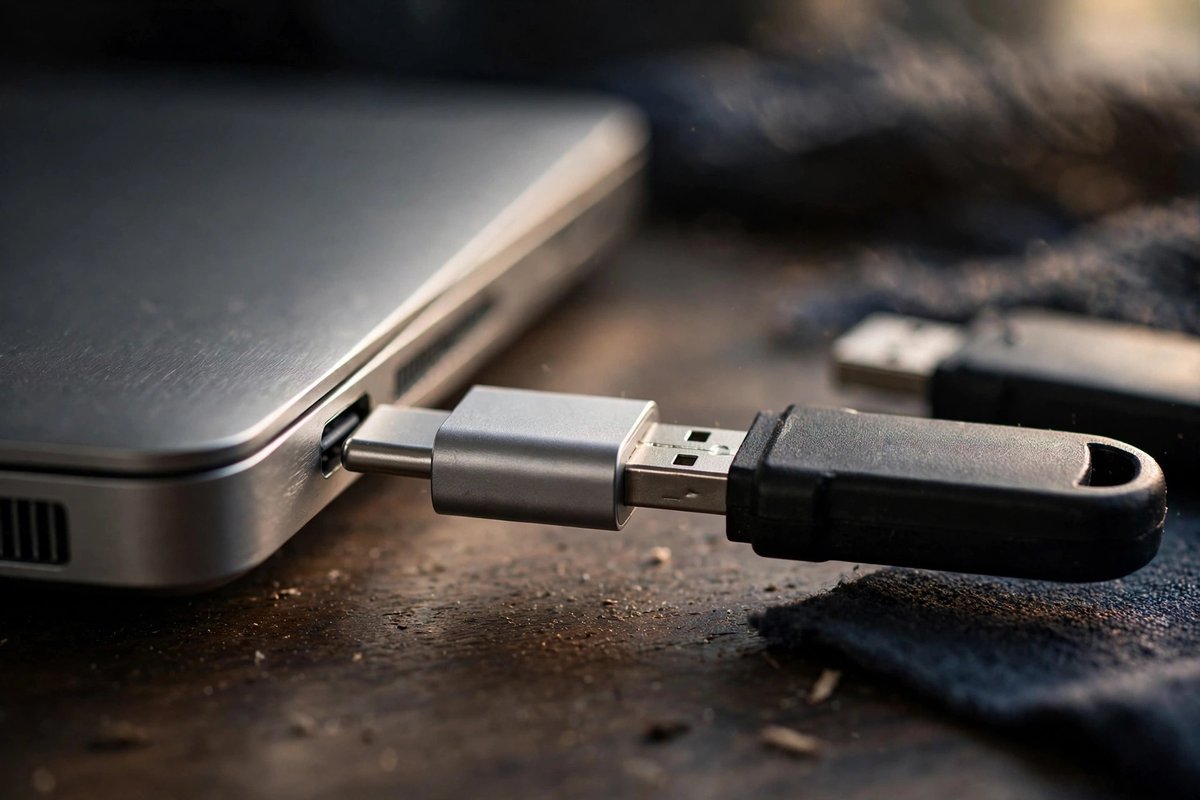
Useful when the computer lacks a port that matches the installer drive. Check boot support for the exact adapter and laptop.
Compare USB adaptersBooting a standard live session does not erase the internal drive. Erasing or repartitioning can happen only if you launch the installer and approve disk changes, so read every storage choice carefully.
An 8 GB drive is often enough for one current desktop image, but 16 GB or more gives comfortable room. Confirm the current image size and the writing tool’s instructions before buying or erasing a drive.
Not automatically. Ubuntu, Linux Mint, and Fedora can support Secure Boot in many configurations. Test first and follow the selected distribution’s current official documentation for the exact hardware.
Yes through dual booting or separate drives, but partition changes carry risk. Back up files, save encryption recovery keys, and create Windows recovery media first.