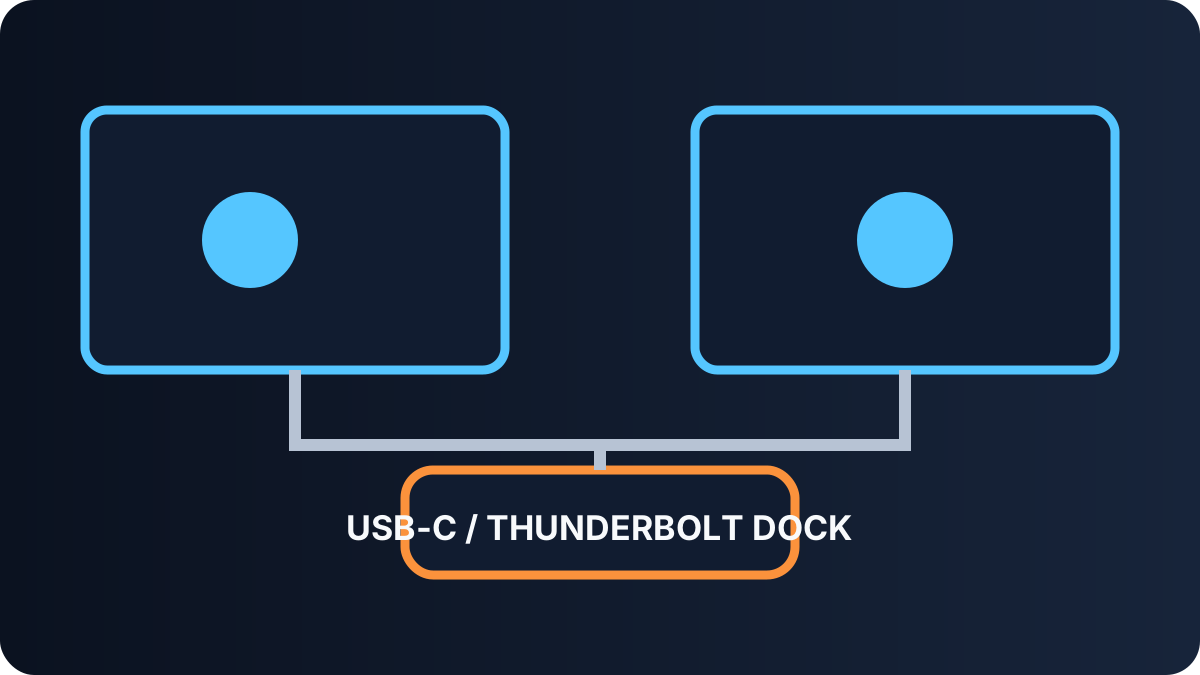
A dock can only create the display setup that the computer, operating system, dock chipset, and monitors support together. Start with the laptop’s video capabilities, then select the connector and power level.
Quick answer: identify how the dock carries video
| Dock type | Best fit | Strength | Check first |
|---|---|---|---|
| USB-C DisplayPort Alt Mode | One or two displays on a compatible laptop | Simple native video path | How many displays the USB-C port and GPU support |
| Thunderbolt 4 or 5 | High-resolution displays and fast peripherals | More bandwidth and strong ecosystem | Laptop, cable, and dock certification |
| USB-C with DisplayLink | Extra office displays when native outputs are limited | Video over USB with software | Driver support and workload suitability |
| Basic USB-C hub | Travel and one external screen | Low cost and compact size | Power delivery and supported refresh rate |
Mac and Windows display limits differ
The same dock can behave differently across computers. Some Macs support only one external display natively, while Windows laptops with USB-C or Thunderbolt may support different display counts depending on the processor, GPU, port wiring, and manufacturer firmware. Verify the exact laptop model—not only the connector shape.
Match resolution and refresh rate
A dock advertised for dual 4K displays may reach that claim only with specific ports, refresh rates, or compression. Check whether the specification covers two displays simultaneously and whether both can run at the refresh rate you want.
Power delivery and cables
- Match the dock’s available laptop charging output to the computer’s recommended input.
- Remember that a dock may reserve part of its power adapter for connected devices.
- Use the included or correctly rated upstream cable.
- For Thunderbolt, look for a certified cable at the length you need.
Choose ports for the work you actually do
Count display connectors, USB devices, Ethernet speed, card readers, and audio needs. A dock with fewer but faster ports can be better than a long list that shares one limited upstream connection.
Six dual-monitor docks worth comparing
The best pick depends on whether your laptop supports native multi-display output or needs DisplayLink. Match the exact computer, operating system, display count, resolution, refresh rate, and charging requirement—not just the connector shape.

CalDigit TS4
Thunderbolt 4 · premium tier
A port-rich desk centerpiece for compatible Thunderbolt computers and high-speed peripherals. Confirm your computer’s native external-display limit.
Compare prices
Plugable UD-6950PDH
DisplayLink · midrange tier
Useful for two office displays across many Windows, macOS, and ChromeOS setups. Install the supported DisplayLink driver and avoid assuming gaming-grade video.
Compare prices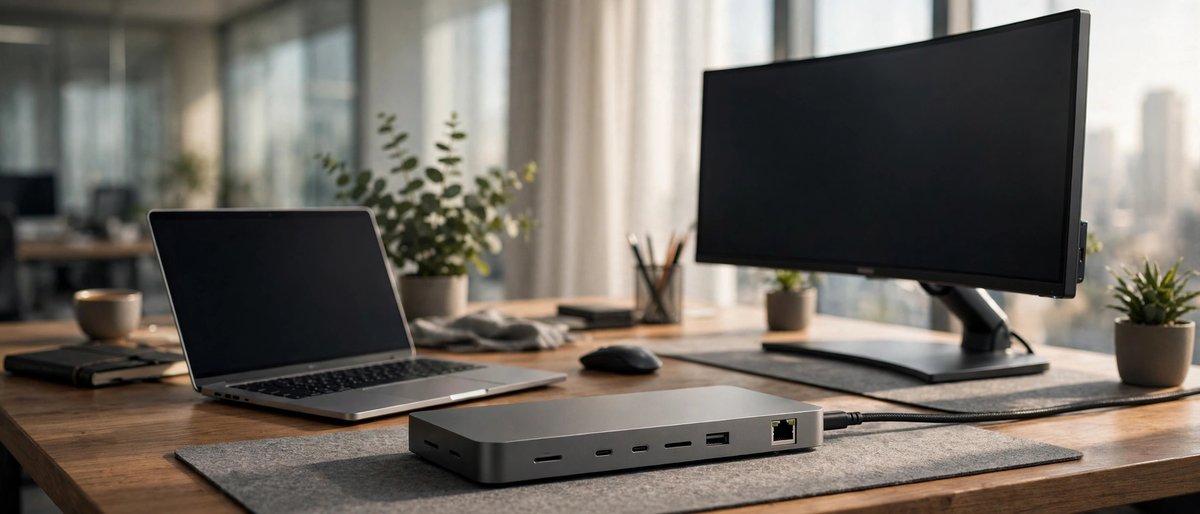
Kensington SD5780T
Thunderbolt 4 · premium tier
A security-slot-equipped option for a fixed office setup. Check monitor connectors and the host computer’s supported display topology.
Compare prices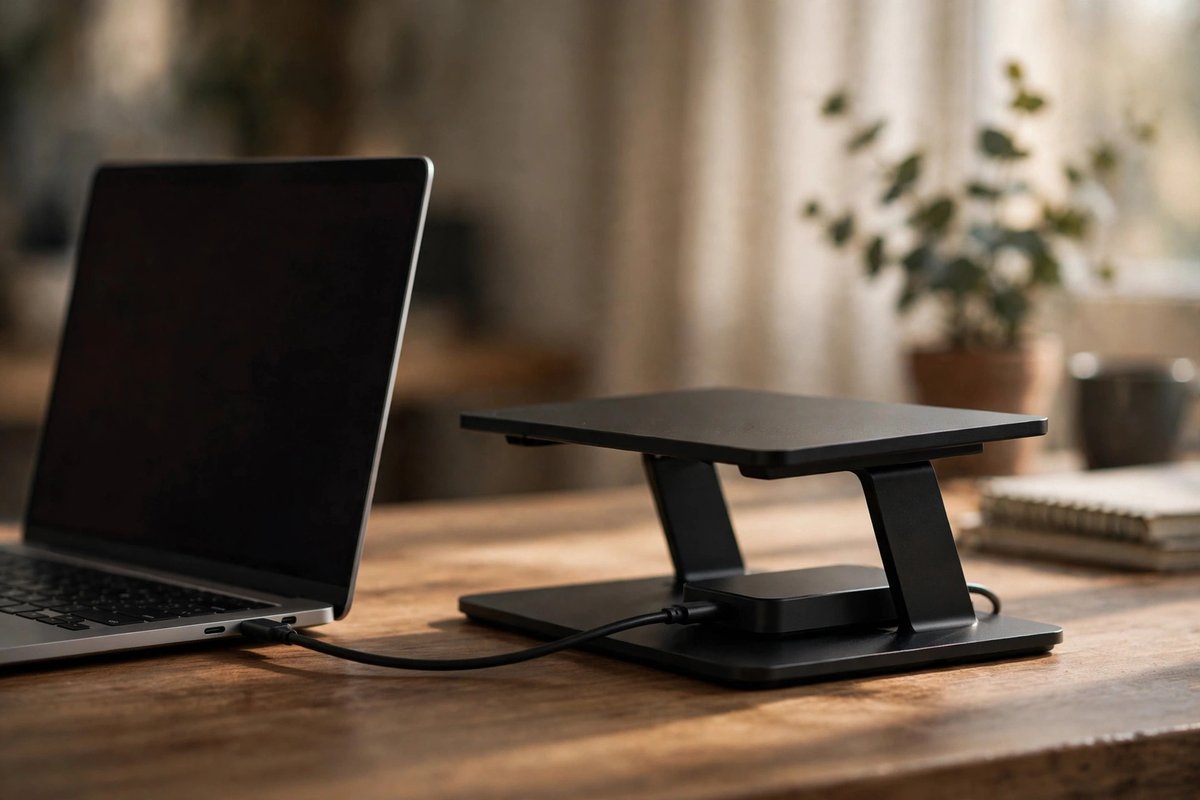
Dell WD22TB4
Thunderbolt 4 · premium tier
A strong match for supported Dell business laptops, with broad desk connectivity. Charging and management features vary outside Dell systems.
Compare prices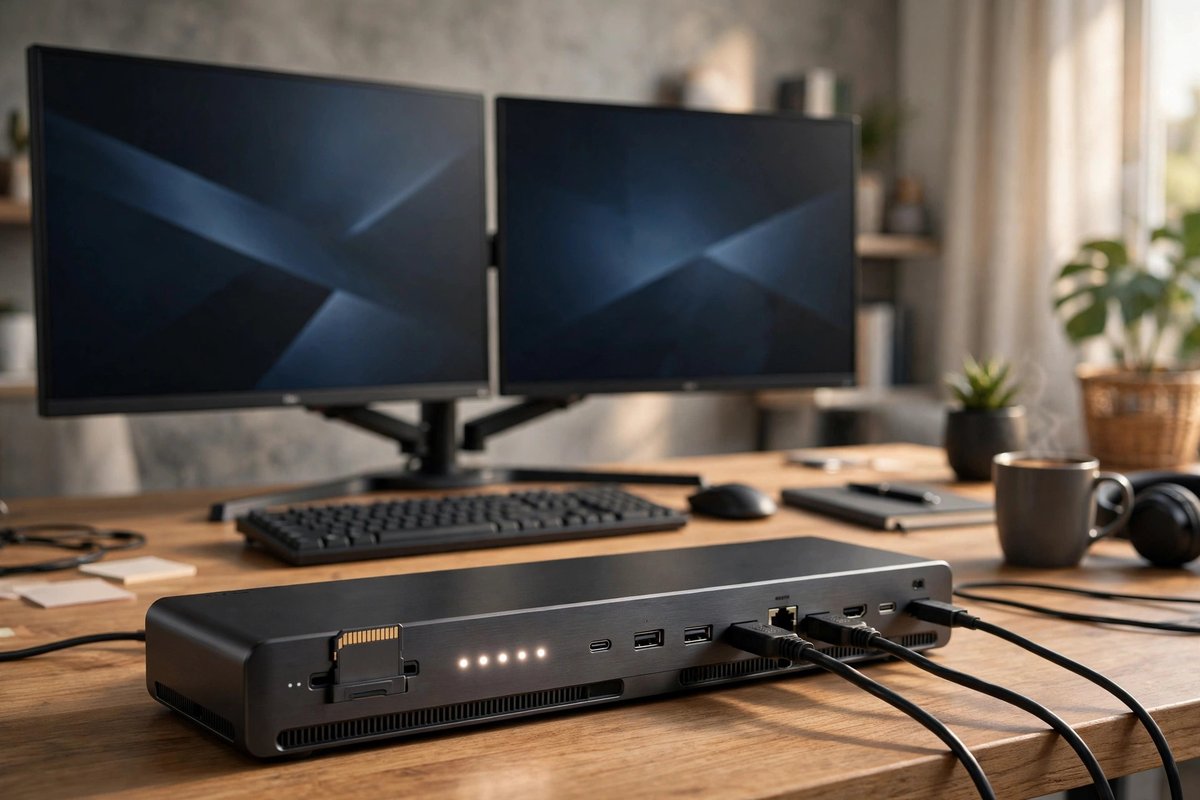
Anker 778 Thunderbolt Docking Station
Thunderbolt 4 · premium tier
Plenty of connections for a permanent workstation. Verify that the exact video ports support your intended two-display combination.
Compare prices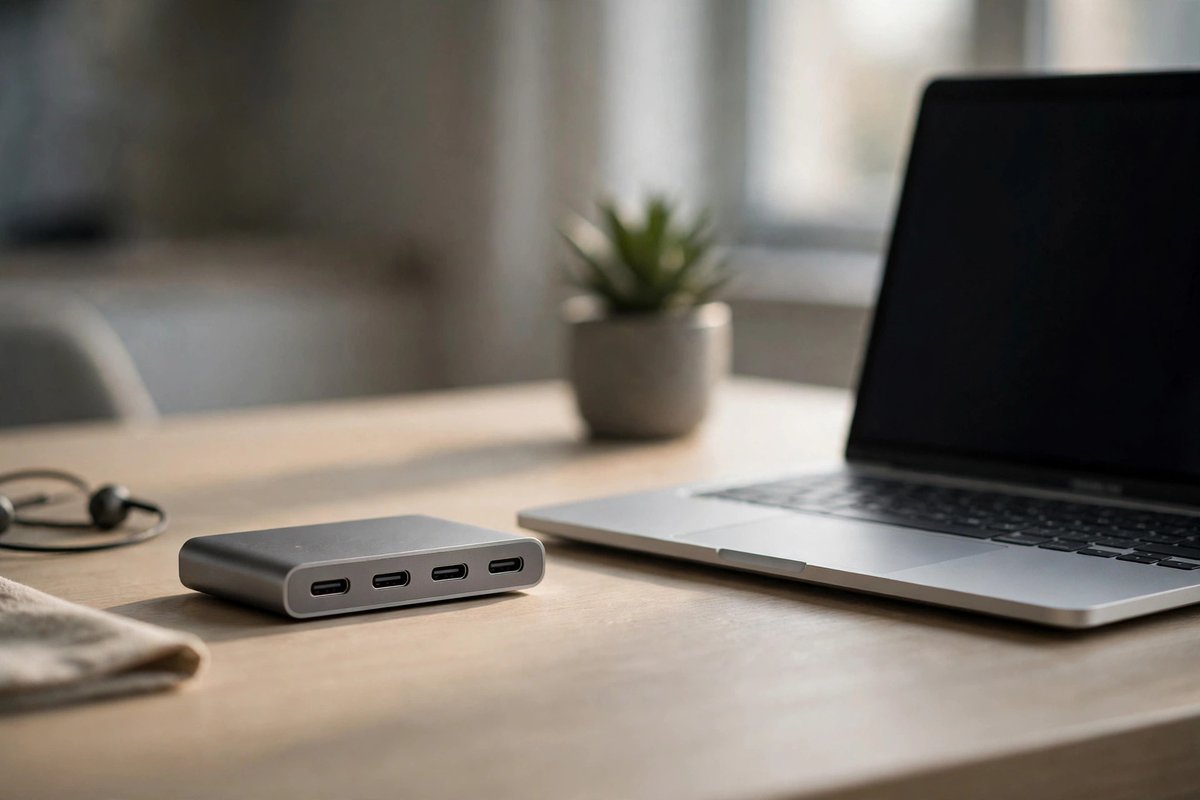
OWC Thunderbolt Hub
Thunderbolt 4 · midrange tier
A compact way to expand Thunderbolt ports and build a flexible display chain. Your laptop still determines native display count.
Compare pricesBuying note: Some base-model Macs support only one native external display. A Thunderbolt dock does not override that hardware limit; choose a supported DisplayLink dock when you intentionally need software-driven extra displays.
Frequently asked questions
Can every USB-C laptop run two external monitors?
No. Display count depends on the computer’s GPU, port capabilities, operating system, dock technology, resolution, and refresh rate.
What is the difference between DisplayPort Alt Mode and DisplayLink?
Alt Mode carries a native DisplayPort signal through USB-C. DisplayLink compresses and sends display data over USB with software and a compatible dock chipset.
Will a 100W dock charge every laptop at 100W?
No. The laptop, dock, cable, and power adapter negotiate charging, and the dock may reserve some power for attached devices.